JPY
JPY USD
USD EUR
EUR GBP
GBP CAD
CAD AUD
AUD HKD
HKD KRW
KRW SGD
SGD NZD
NZD THB
THB TWD
TWD 繁體中文
繁體中文 日本語
日本語 한국어
한국어 ไทย
ไทย Français
 Español
 Deutsch
 Português
 italiano
 Nederlands
 English

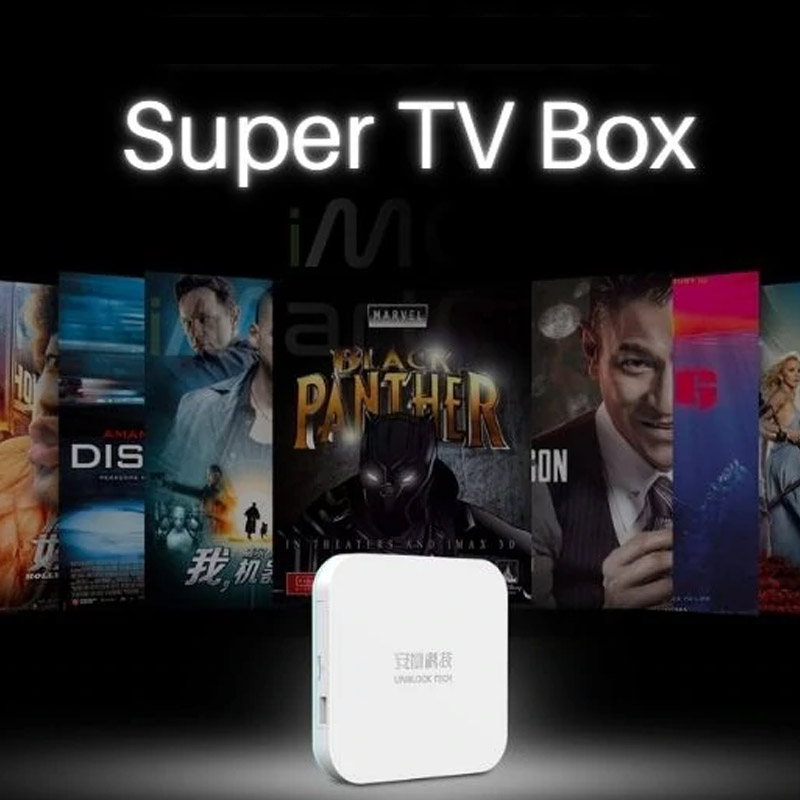
How to Use the UNBLOCK TV BOX: Complete Setup & User Guide!

If you have recently purchased an UNBLOCK TV BOX and are wondering how to set it up, access live TV channels, watch movies and TV shows, use playback, or connect it to an Android mobile device, this guide will walk you through everything you need to know.
The UNBLOCK TV BOX is designed to make streaming and TV entertainment easier by combining live TV, replay, movies, TV shows, and other entertainment services in one Android-based TV box.
Whether you are a first-time user or have upgraded from an older generation to the latest UNBLOCK UBOX12 PRO, the basic setup process is straightforward.
In this complete guide, we will explain:
▶︎How to set up an UNBLOCK TV BOX
▶︎How to connect the UNBLOCK TV BOX to Wi-Fi
▶︎How to use the remote control
▶︎How to watch live TV
▶︎How to use playback and replay
▶︎How to watch movies and TV shows
▶︎How to use the UNBLOCK mobile app
▶︎How to update apps and system software
▶︎How to troubleshoot common problems
▶︎How to get the best performance from your UNBLOCK TV BOX
What Is an UNBLOCK TV BOX?
An UNBLOCK TV BOX is an Android-based smart TV box designed to provide a centralized entertainment experience on a television.
Instead of switching between multiple streaming devices and applications, users can access different entertainment functions through the box's built-in interface.
Depending on the model and available services, users may be able to access:
➡️Live TV channels
➡️TV program replay
➡️Movies
➡️TV series
➡️On-demand content
➡️Entertainment applications
➡️Android applications
➡️Mobile viewing on supported Android devices
The latest generation, such as the UNBLOCK UBOX12 PRO, is designed for users who want a simple interface and a wide range of entertainment functions in one device.
What Do You Need Before Setting Up an UNBLOCK TV BOX?
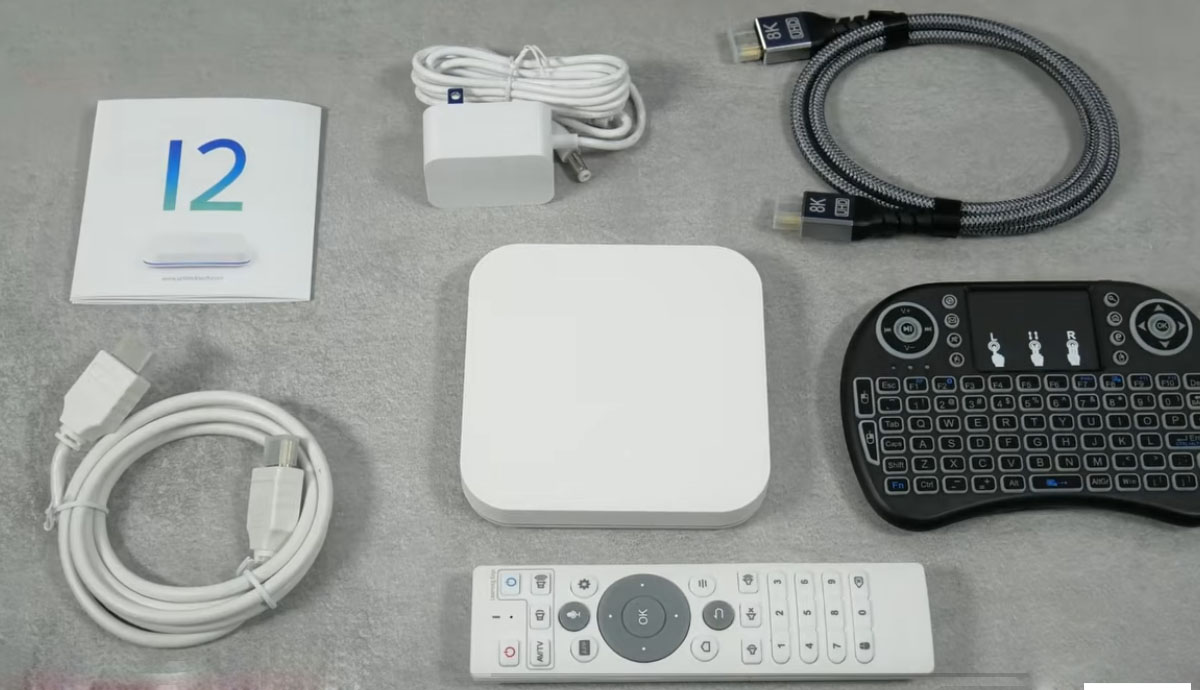
Before turning on your UNBLOCK TV BOX, prepare the following:
1. A TV with an HDMI port
Your television should have an available HDMI input.
Most modern smart TVs, LED TVs, LCD TVs, OLED TVs, and 4K TVs include HDMI ports.
2. A stable Internet connection
An Internet connection is required for online TV, movies, updates, and other Internet-based services.
For the best experience, a stable Wi-Fi connection is recommended.
3. HDMI cable
Connect the TV box to your television using an HDMI cable.
4. Power adapter
Connect the included power adapter to the TV box and a suitable power outlet.
5. Remote control
The included remote control allows you to navigate menus, launch applications, change channels, and control playback.
How to Set Up the UNBLOCK TV BOX
Setting up the UNBLOCK TV BOX generally takes only a few minutes.
Follow these steps.
Step 1: Connect the HDMI Cable
Connect one end of the HDMI cable to the HDMI port on the UNBLOCK TV BOX.
Connect the other end to an available HDMI port on your television.
For example:
UNBLOCK TV BOX → HDMI Cable → TV HDMI Port
Make sure the cable is firmly connected.
Step 2: Connect the Power Adapter
Connect the power adapter to the TV box.
Then plug the adapter into a power outlet.
Once the device receives power, the indicator light may turn on and the TV box will begin starting up.
Step 3: Select the Correct HDMI Input
Turn on your television and use the TV remote to select the HDMI input connected to the UNBLOCK TV BOX.
For example, if you connected the box to HDMI 1, select:
HDMI 1
If the screen remains blank, check whether the correct HDMI input has been selected.
Step 4: Turn On the UNBLOCK TV BOX
Use the included remote control to turn on the device.
The first startup may take slightly longer than normal.
Once the system loads, you should see the UNBLOCK TV BOX home screen.
How to Connect UNBLOCK TV BOX to Wi-Fi
Internet connectivity is one of the most important parts of the setup process.
To connect your UNBLOCK TV BOX to Wi-Fi:
- Open Settings.
- Select Network or Wi-Fi.
- Turn Wi-Fi on.
- Find your home Wi-Fi network.
- Select your Wi-Fi name.
- Enter your Wi-Fi password.
- Select Connect.
After the connection is successful, the TV box should be able to access Internet-based services.
Tip for Better Streaming Performance
Place your TV box where the Wi-Fi signal is relatively strong.
If the router is far away from your television, you may experience:
▶︎Slow loading
▶︎Buffering
▶︎Delayed channel switching
▶︎Video quality fluctuations
If possible, place the router and TV box in locations with fewer physical obstacles between them.
How to Use the UNBLOCK TV Box Remote Control
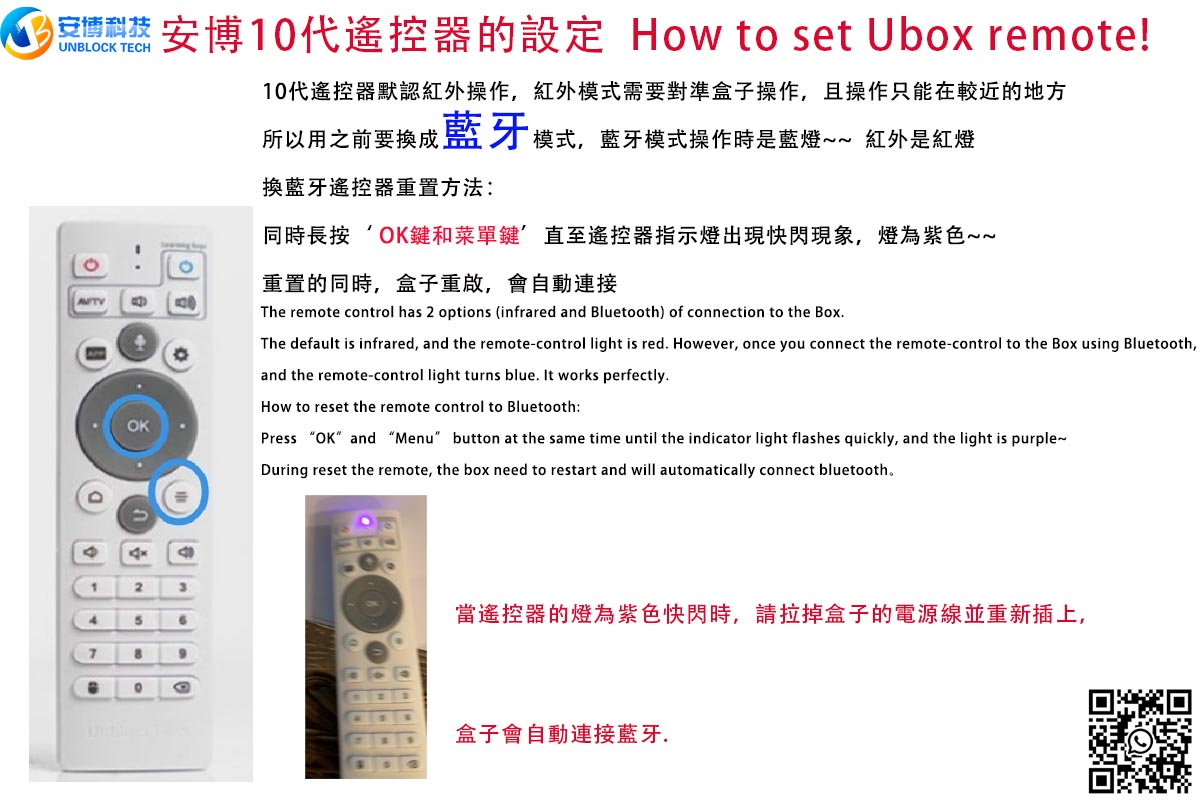
The remote control is the primary way to navigate the TV box.
Common functions include:
Navigation buttons
Use the directional buttons to move between menus and applications.
OK button
Press OK to select an application, channel, movie, or menu option.
Back button
Press Back to return to the previous screen.
Home button
Press Home to return to the main interface.
Volume buttons
Use the volume buttons to adjust the TV box's audio output.
Voice button
If your remote includes a voice function, you can use it for supported voice-control features.
How to Watch Live TV on an UNBLOCK TV BOX
One of the main reasons people choose an UNBLOCK TV BOX is the convenience of accessing live television through the built-in services.
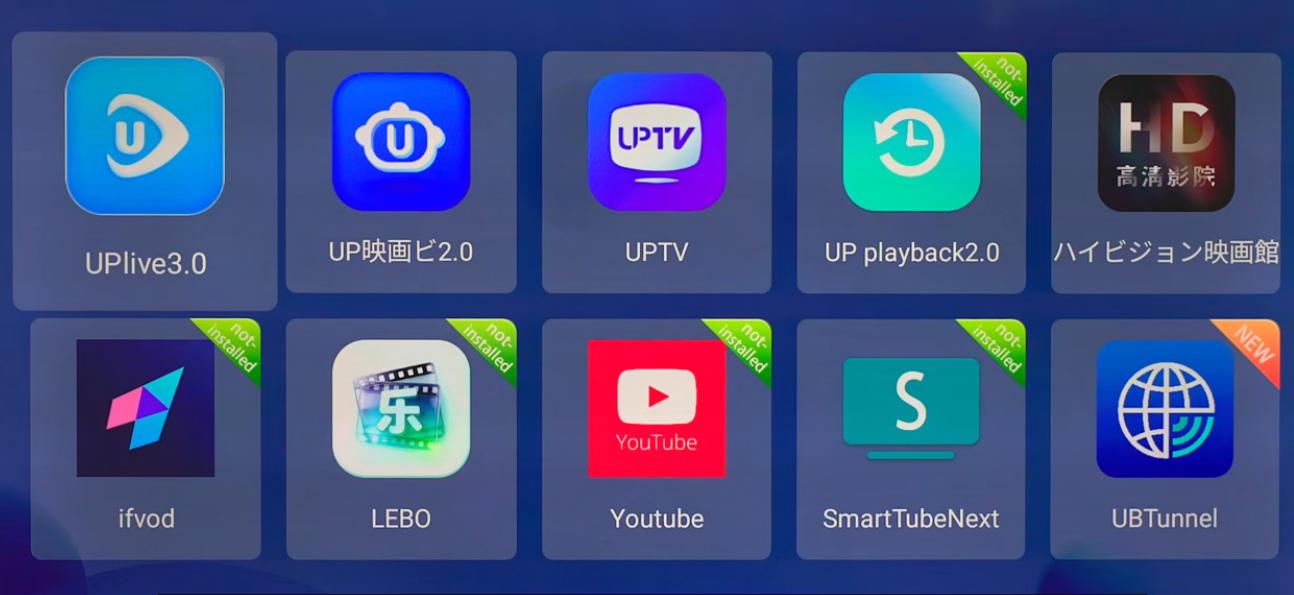
From the home screen, locate the live TV application, such as UPLive, when available on your model.
Open the application to enter the live TV interface.
Depending on the available service and region, you may find categories such as:
⮞News
⮞Sports
⮞Entertainment
⮞Movies
⮞Kids
⮞Lifestyle
⮞International channels
⮞Regional channels
The exact channel lineup can change over time as services and content are updated.
How to Change Channels
There are several ways to switch channels.
Method 1: Channel Up / Down
Use the channel buttons on the remote control.
Method 2: Channel List
Open the channel list and select the channel you want to watch.
Method 3: Category Navigation
Some interfaces allow you to browse channels by category.
This can be more convenient when there are many channels available.
How to Use Playback or Replay
Another useful feature of supported UNBLOCK TV BOX services is TV playback.
Playback allows users to watch previously broadcast programs rather than having to watch everything live.
For example, if you missed a program earlier in the day, you may be able to open the relevant channel and select an earlier program from the available playback schedule.
The exact playback period depends on the service and channel.
Typical Playback Process
- Open the live TV application.
- Select a channel.
- Open the program guide or playback function.
- Select the previous program.
- Choose the desired playback time.
- Press OK to start watching.
This feature can be particularly useful for sports, news, TV programs, and other scheduled broadcasts.
How to Watch Movies and TV Shows
In addition to live television, supported UNBLOCK TV BOX models provide access to movie and TV entertainment services.
Depending on the model and software version, you may see applications such as UPVOD or other built-in entertainment services.
To watch a movie:
- Open the movie or VOD application.
- Browse available categories.
- Select a title.
- Open the title page.
- Select Play.
You can usually use the remote control to:
⮞Pause
⮞Resume
⮞Fast-forward
⮞Rewind
⮞Adjust volume
⮞Exit playback
⮞Can You Use an UNBLOCK TV BOX on an Android Phone or Tablet?
Yes, supported UNBLOCK services can also provide a mobile viewing option for compatible Android devices.
This can be useful when you are away from your television.
For example, you may use a compatible Android phone or tablet to watch supported content when traveling, relaxing in another room, or when the television is being used by someone else.
How to Use the UNBLOCK Mobile App
The general process is:
- Use your UNBLOCK TV BOX to access the relevant mobile-app information.
- Download the official supported Android application.
- Install the application on your Android phone or tablet.
- Open the app.
- Follow the on-screen instructions to connect or activate the service.
- Start watching supported content.
Important Compatibility Note
Mobile functionality depends on the specific UNBLOCK model and software.
For example, the current UBOX12 PRO supports use with one TV and one compatible Android mobile device.
iOS support should not be assumed unless the specific model officially states that iPhone or iPad is supported.
Can You Use the UNBLOCK TV BOX Without a TV?
The main purpose of the UNBLOCK TV BOX is to connect to a television through HDMI.
However, supported mobile applications can provide an additional viewing option on compatible Android phones or tablets.
Therefore, the TV box remains the primary entertainment device, while the Android mobile application provides additional flexibility.
How to Update the UNBLOCK TV BOX?
Keeping your device and applications updated can help maintain compatibility and performance.
If an official software or application update is available, follow the instructions provided through the device.
Before performing a major system update:
⮞Make sure the Internet connection is stable.
⮞Keep the device connected to power.
⮞Do not disconnect the power during an update.
⮞Avoid interrupting the update process.
An interrupted firmware update can potentially cause software problems.
How to Improve UNBLOCK TV BOX Performance
Even a powerful TV box can perform poorly if the network environment is unstable.
Here are several practical ways to improve performance.
1. Use a Strong Wi-Fi Connection
A weak Wi-Fi signal can cause buffering and slow loading.
Try moving the router closer to the TV box or reducing obstacles between the router and device.
2. Restart the TV Box Regularly
If the device has been running continuously for a long period, restarting it can sometimes resolve temporary software or network issues.
Simply:
Power off → Wait a few seconds → Power on
3. Restart Your Router
If multiple devices in your home are experiencing slow Internet speeds, the issue may be related to the router or Internet connection rather than the TV box.
Restarting the router can sometimes restore normal network performance.
4. Avoid Excessive Background Applications
Because an Android TV box can support applications beyond the built-in TV services, installing too many unnecessary applications may consume storage and system resources.
Keep only the applications you actually use.
UNBLOCK TV BOX Not Working? Common Solutions
Sometimes users may encounter problems after installation.
Here are some common issues and possible solutions.
Problem 1: TV Shows "No Signal"
Check:
⮞HDMI cable connection
⮞TV HDMI input
⮞TV box power connection
⮞HDMI cable condition
Then select the correct HDMI source on the television.
Problem 2: Wi-Fi Cannot Connect
Try:
- Restarting the TV box.
- Restarting the router.
- Checking the Wi-Fi password.
- Moving the box closer to the router.
- Reconnecting to the Wi-Fi network.
If other devices also cannot connect to the same network, the problem may be related to the router or Internet service.
Problem 3: Video Keeps Buffering
Buffering is commonly associated with network conditions.
Check your:
⮞Wi-Fi signal
⮞Internet speed
⮞Router location
⮞Network congestion
You can also restart both the TV box and router.
Problem 4: UNBLOCK TV BOX Is Stuck on the Logo
If the device remains on the UNBLOCK logo and does not continue starting up, this may indicate a software or boot-related issue.
Before attempting advanced firmware flashing, try:
- Disconnecting the power.
- Waiting for a short period.
- Reconnecting the power.
- Restarting the device.
If the problem continues, contact the seller or official support before attempting firmware installation.
Do not install firmware intended for a different model.
Using an incorrect firmware file can potentially cause additional problems.
How to Keep Your UNBLOCK TV BOX Secure and Reliable
When using an Android TV box, it is important to pay attention to where applications and software are obtained.
For better security:
⮞Use official software sources whenever possible.
⮞Avoid unknown APK files.
⮞Do not install applications from suspicious websites.
⮞Keep your device software updated when official updates are available.
⮞Do not share account information with unknown third parties.
If an application requests unusual permissions, review the request carefully before installing it.
UNBLOCK TV BOX Setup: Quick Start Checklist
For users who want a simple setup checklist, follow these steps:
① Connect HDMI
Connect the UNBLOCK TV BOX to your television.
② Connect Power
Plug the power adapter into the device.
③ Select HDMI
Choose the correct HDMI input on your TV.
④ Connect Wi-Fi
Select your home Wi-Fi network and enter the password.
⑤ Open the Main Menu
Use the remote control to navigate the home screen.
⑥ Explore Live TV
Open the available live TV service.
⑦ Try Playback
Check the program guide and available replay options.
⑧ Explore Movies & TV
Open the supported VOD or movie applications.
⑨ Set Up Android Mobile Viewing
If your model supports mobile viewing, install the compatible Android application.
Why Is the UNBLOCK TV BOX Popular With International Users?
For users who frequently watch international television content, a TV box can provide a convenient way to organize different entertainment functions in one device.
Instead of using multiple devices for different purposes, users can access supported services through one interface.
This can be especially convenient for:
⮞Families living overseas
⮞International households
⮞Travelers
⮞Multilingual households
⮞Users who watch Asian TV programs abroad
⮞Users who want live TV and on-demand entertainment in one device
However, available content and channels can vary by service, region, network conditions, and software version.
UBOX12 PRO: A Newer Generation UNBLOCK TV BOX
The UNBLOCK UBOX12 PRO is the latest-generation model in the UBOX lineup and is designed around a simple Android TV-box experience.
Key hardware specifications include:
➡️Android-based operating system
➡️4GB RAM
➡️64GB storage
➡️Wi-Fi 6
➡️Allwinner H618 chipset
➡️Mali-G31 graphics
➡️Bluetooth connectivity
➡️AI voice remote
➡️HDMI output
➡️Support for compatible Android mobile viewing
The combination of hardware and software provides a platform for live TV, replay, VOD, movies, applications, and other supported entertainment functions.
For buyers comparing different generations, it is important to distinguish the model name and software version rather than relying only on the generation number.
Frequently Asked Questions About UNBLOCK TV BOX
Does the UNBLOCK TV BOX require Wi-Fi?
Yes. Internet access is required for online services such as live TV, VOD, updates, and other Internet-based functions.
Is the UNBLOCK TV BOX easy to set up?
Yes. The basic setup normally involves connecting HDMI and power, selecting the correct HDMI input, and connecting the device to Wi-Fi.
Can I watch live TV with an UNBLOCK TV BOX?
Supported UNBLOCK services provide access to live TV channels. The available channels and content may vary depending on the service and software version.
Can I watch movies on an UNBLOCK TV BOX?
Yes. Supported models include movie and VOD services such as UPVOD and other entertainment applications.
Does UNBLOCK TV BOX support playback?
Supported TV services can provide playback or replay functionality. The available playback period varies by channel and service.
Can I use UNBLOCK TV BOX on my phone?
Supported models can provide Android mobile viewing through compatible applications.
For example, the UBOX12 PRO supports one TV and one compatible Android mobile device.
Does UNBLOCK TV BOX work with iPhone?
Mobile compatibility depends on the specific model and official application. The UBOX12 PRO's mobile viewing feature is designed for compatible Android devices rather than iOS devices.
Why is my UNBLOCK TV BOX buffering?
Buffering can be caused by an unstable or weak Internet connection, Wi-Fi interference, router congestion, or service-side conditions.
Start by checking your Wi-Fi connection and restarting your router and TV box.
What should I do if my UNBLOCK TV BOX does not turn on?
First check the power adapter, power connection, HDMI connection, and television input.
If the device remains stuck on the startup logo, avoid installing random firmware files. Contact official support or your seller for model-specific troubleshooting.
How to Get the Most From Your UNBLOCK TV BOX
Using an UNBLOCK TV BOX is relatively simple once the initial setup is complete.
The basic workflow is:
Connect → Power On → Connect Wi-Fi → Open Services → Watch
From there, users can explore live TV, playback, movies, TV shows, VOD services, and supported Android mobile viewing.
The most important factors for a smooth experience are a stable Internet connection, correct device setup, appropriate software, and using compatible applications and firmware.
If you are purchasing a new device, always check the exact model, supported functions, mobile compatibility, warranty terms, and current software before making your decision.
For users looking for a newer-generation UNBLOCK TV BOX, the UBOX12 PRO combines 4GB RAM, 64GB storage, Wi-Fi 6, Android-based functionality, live TV services, playback, VOD, and supported Android mobile viewing in one compact entertainment device.