EUR
EUR USD
USD GBP
GBP CAD
CAD AUD
AUD HKD
HKD JPY
JPY KRW
KRW SGD
SGD NZD
NZD THB
THB TWD
TWD 繁體中文
繁體中文 日本語
日本語 한국어
한국어 ไทย
ไทย Français
 Español
 Deutsch
 Português
 italiano
 Nederlands
 English

How to Use Mobile APP on UBOX12 Pro: A Complete Mobile TV Streaming Guide!
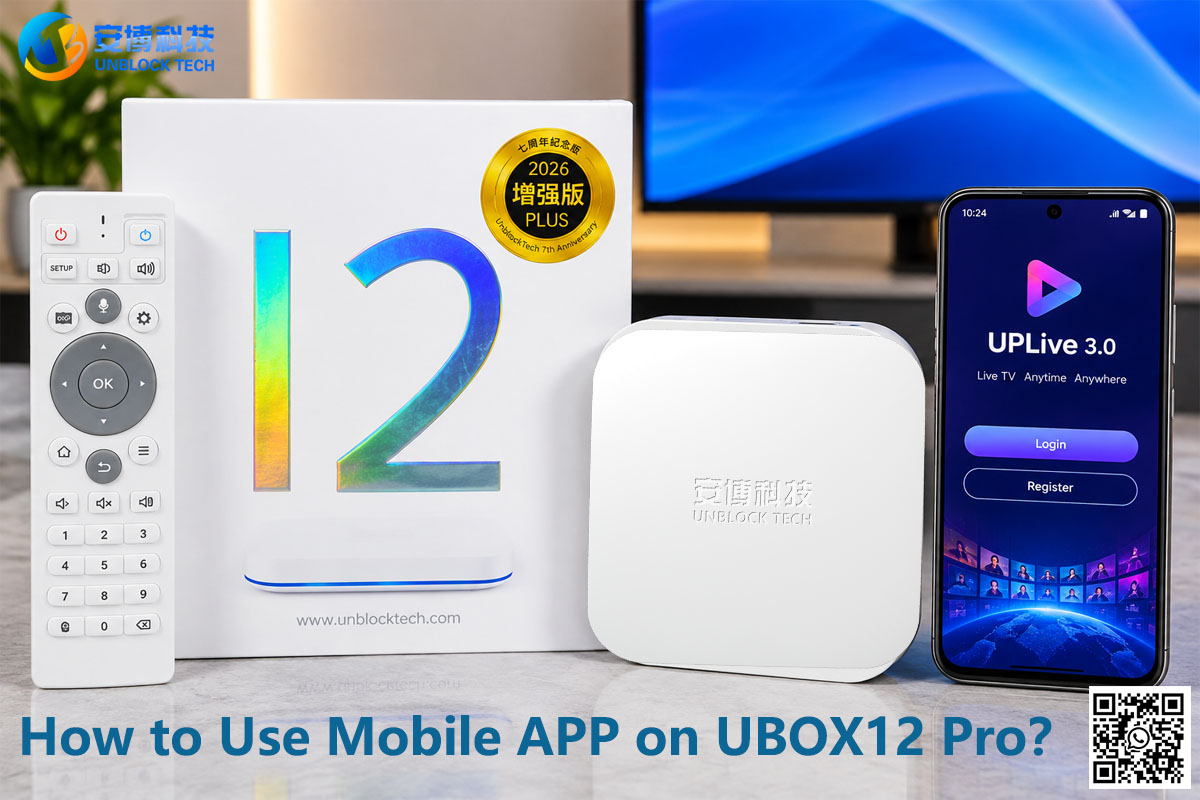
Are you looking for a convenient way to watch live TV on your smartphone without being tied to your television? The UnblockTech UBOX12 Pro offers a mobile streaming option through the UPLive 3.0 app, allowing compatible Android smartphones and tablets to access TV content on the go.
Whether you are relaxing at home, traveling, or away from your TV, mobile streaming gives you more flexibility to enjoy your entertainment.
In this guide, we will explain how to register the UBOX12 Pro mobile version, install the UPLive app, watch live TV outside your home, and understand the mobile version's compatibility and usage requirements.
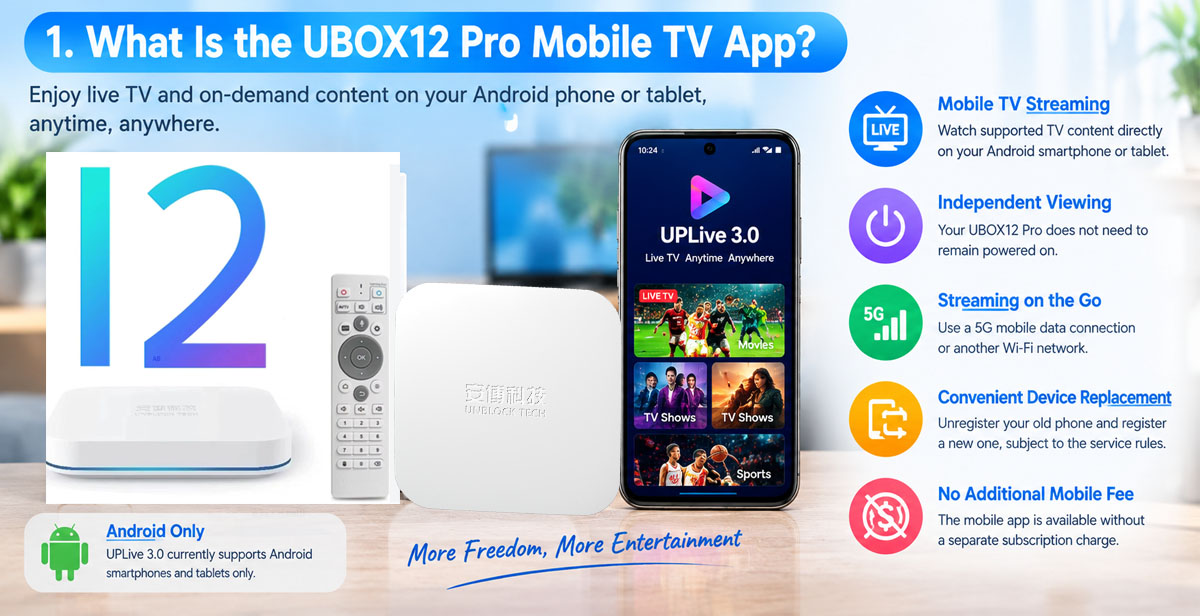
1. What Is the UnblockTech UBOX12 Pro Mobile TV App?
The UBOX12 Pro is an Android TV box designed to provide access to live television and on-demand entertainment. In addition to watching content on your TV, you can use the UPLive 3.0 mobile app to enjoy supported TV content on compatible Android mobile devices.
The mobile version is particularly useful for users who want more flexibility in how and where they watch TV.
Key benefits include:
➡️Mobile TV streaming: Watch supported TV content directly on your Android smartphone or tablet.
➡️Independent viewing: Your UBOX12 Pro does not need to remain powered on while you watch on your registered mobile device.
➡️Streaming on the go: Use a suitable 5G mobile data connection or another Wi-Fi network when you are away from home.
➡️Convenient device replacement: Unregister your old phone and register a new one when changing devices, subject to the service's registration rules.
➡️No additional mobile subscription fee: The mobile app is available without a separate subscription charge.
These features make the UBOX12 Pro mobile version a convenient option for users who want to enjoy TV content beyond their living room.
2. Is UPLive 3.0 Compatible with Android Phones and Tablets?
The UPLive 3.0 app currently supports Android smartphones and tablets only. It does not support iOS devices, including iPhones and iPads.
However, UP影视 (UP Movies & TV) supports both Android and iOS devices, allowing users to enjoy supported entertainment content on compatible smartphones and tablets.
Please note that UPLive 3.0 and UP影视 are different applications with different functions. If you use an iPhone or iPad, please check whether UP影视 meets your viewing needs before purchasing.
For Android users who want to watch live TV on their mobile devices, UPLive 3.0 offers a convenient mobile streaming option, including viewing away from home through mobile data or Wi-Fi.
3. Does UBOX12 Pro Need to Stay Turned On for Mobile Streaming?
No. The UBOX12 Pro does not need to remain powered on while you watch TV through the mobile app.
Once your mobile device has been registered successfully, you can watch supported content independently on your phone or tablet. The TV box can be switched off or disconnected from its power supply without interrupting mobile viewing.
This is useful when:
▶︎Someone else is using the television at home.
▶︎You want to watch TV while relaxing in another room.
▶︎You are traveling and do not have access to your TV box.
▶︎You want to watch supported TV content on a personal mobile device.
Your phone connects to the mobile streaming service directly, rather than relying on the TV box to transmit the picture to your phone.
4. Can You Watch Live TV Away from Home?
Yes. You can use the registered mobile app outside your home, provided your device has a suitable internet connection.
Supported connection options include:
▶︎5G mobile data: Watch while commuting or traveling, subject to mobile coverage and your data plan.
▶︎Home Wi-Fi: Stream over your usual wireless internet connection.
▶︎Hotel or other Wi-Fi: Connect to another available Wi-Fi network when away from home.
Your smartphone does not need to be connected to the same Wi-Fi network as your UBOX12 Pro.
For the best viewing experience, use a stable, sufficiently fast internet connection. Streaming over mobile data may consume a substantial amount of data, so check your mobile plan if you watch for extended periods.
Public Wi-Fi networks may also require a sign-in or access authorization before streaming can begin.
5. Can You Watch the Same Channels and VOD Content on Your Phone?
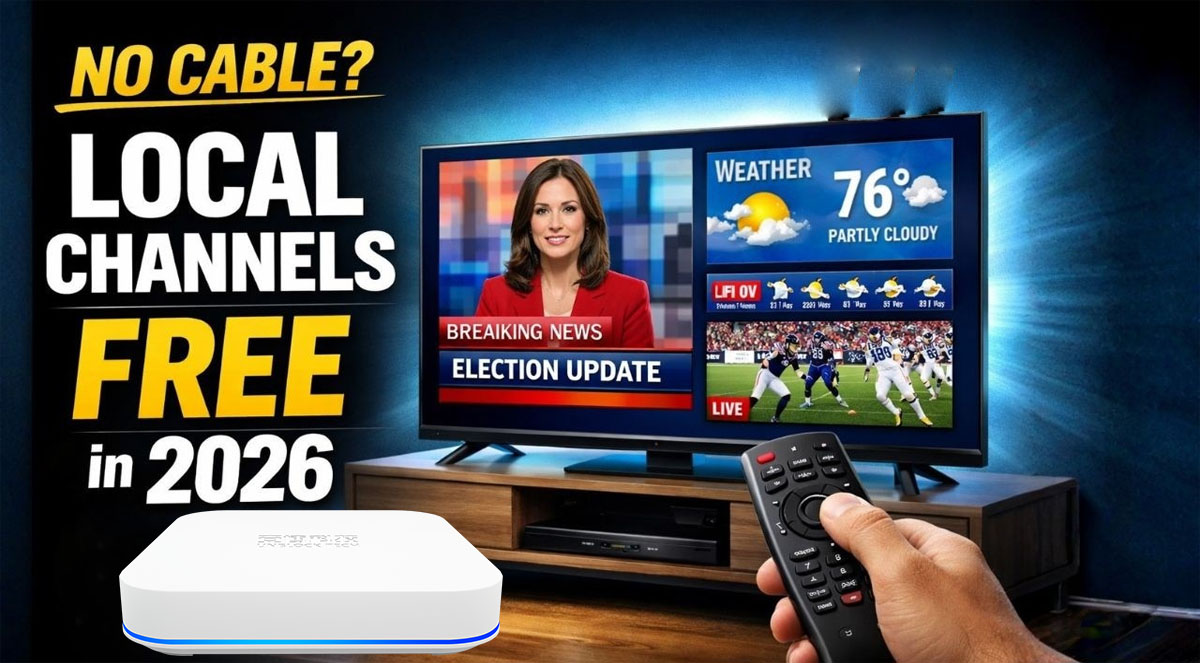
The mobile version provides access to the same app content as the TV version, according to the current product information.
This allows you to enjoy supported entertainment on your smartphone or tablet instead of watching exclusively on your television.
However, mobile and TV interfaces may differ, and the availability of individual channels or VOD titles can depend on the app version and service configuration. We recommend checking the specific channels and features you need before purchasing rather than assuming that every function will be identical on every device.
If you mainly want to watch international live TV while traveling, the mobile version can provide an additional way to access supported content without carrying your TV box.
6. How to Register UBOX12 Pro Mobile TV with UPLive
Follow the steps below to register your Android phone or tablet.
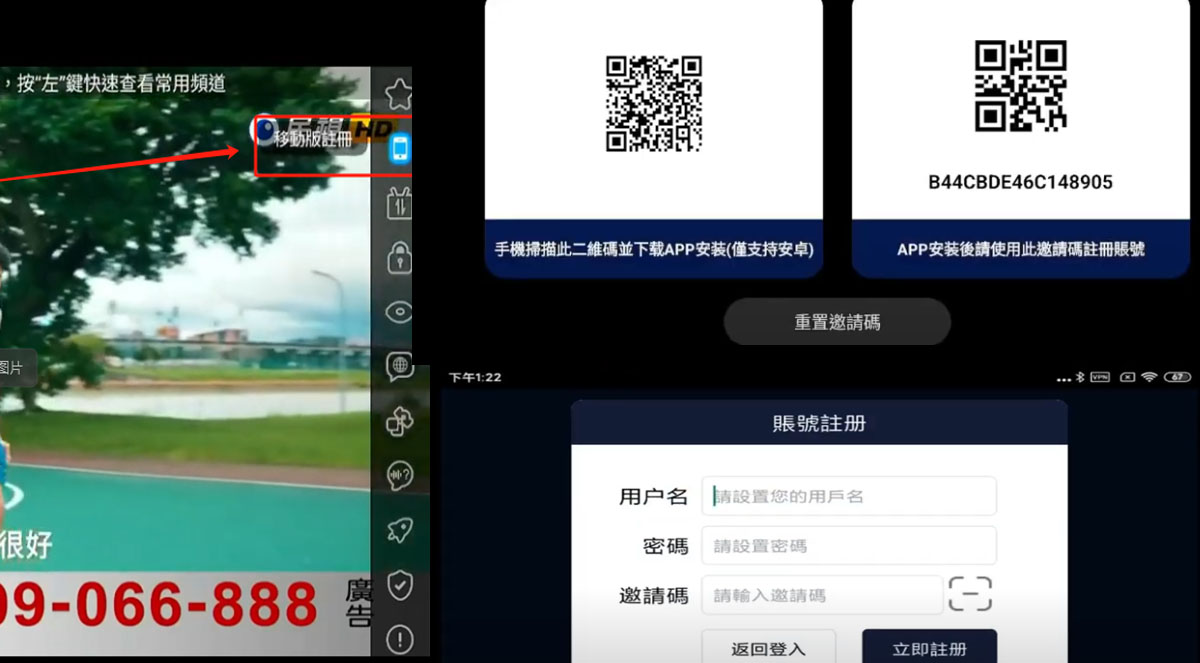
Step 1: Open the Mobile Registration Menu
Turn on your UBOX12 Pro and use the remote control to open the main menu.
Find and select Mobile Version Registration to display the registration QR code on your television screen.
Step 2: Scan the QR Code
Use your smartphone to scan the QR code displayed on the TV.
Follow the instructions to download the UPLive mobile app installation package (APK).
Security tip: Download the APK only through the registration process or an official source provided by your seller. Android may request permission to install an app from an external source. Only grant this permission when you have verified the app's origin.
Step 3: Install the UPLive App
After downloading the APK, open the installation file and follow the on-screen instructions.
If Android displays a security prompt, review the app source and installation permissions before proceeding.
Once installation is complete, open UPLive on your phone.
Step 4: Register Your Mobile Account
Open the app and select Register.
Create a username and password according to the registration requirements:
▶︎Username: 8–20 characters.
▶︎Password: 8–20 characters.
▶︎Spaces are not allowed in either field.
Enter your details and submit the registration.
If registration succeeds, the app should display a success message and may automatically log you in.
Step 5: Log In and Start Watching
If you are returned to the login screen, enter the username and password you just created.
Tap Login and wait for the login confirmation.
Once you have logged in successfully, open the available TV content and select a channel to begin watching.
You can now enjoy supported live TV content directly on your Android smartphone or tablet.
Note: The registration menu and app interface may vary by software version. If your UBOX12 Pro displays different instructions, follow the on-screen prompts or contact customer support for the correct procedure for your device.
7. What Happens If You Change Your Smartphone?
You can change your registered mobile device if you replace your phone.
The general process is:
-
Open the mobile registration settings on your existing device or TV box, as applicable.
-
Unregister the old mobile device.
-
Follow the registration procedure to register your new Android phone.
-
Log in and verify that streaming works correctly.
Before changing devices, make sure you have access to your account details and the registration menu.
If the app reports that the device is already registered or you cannot unregister the old phone, contact customer support for assistance.
8. Is the UBOX12 Pro Mobile App Free?
The mobile streaming feature is available without an additional mobile subscription fee. You do not need to purchase a separate mobile subscription simply to use the supported mobile app.
Keep in mind that the following may still apply:
▶︎Your internet service or mobile data plan may incur charges.
▶︎Your mobile carrier may impose data limits or roaming fees.
▶︎Device compatibility and registration requirements still apply.
The mobile app's availability does not mean that internet access itself is free.
9. Frequently Asked Questions About UBOX12 Pro Mobile Streaming
Q1. Can I watch TV on my phone when my UBOX12 Pro is turned off?
Yes. After successful mobile registration, you can watch supported content independently without keeping the UBOX12 Pro powered on.
Q2. Can I watch live TV using 5G mobile data?
Yes. You can use a suitable 5G connection or another Wi-Fi network, provided you have internet access and the mobile service is available.
Q3. Must my phone and UBOX12 Pro use the same Wi-Fi network?
No. Your phone does not need to be on the same Wi-Fi network as the TV box for mobile streaming.
Q4. Does UPLive 3.0 work on iPhone?
The mobile app described in this guide supports Android phones and tablets. iOS compatibility has not been confirmed, so iPhone and iPad users should not assume that the app is supported.
Q5. Can I register a new phone after replacing my old one?
Yes. You can unregister the old phone and register a replacement device, subject to the service's registration rules.
Q6. Do I have to pay a monthly fee for mobile streaming?
No additional mobile subscription fee is required according to the current product information. Internet and mobile data charges may still apply.
Q7. Is mobile registration complicated?
The process involves displaying a QR code on your TV, downloading and installing the app, creating a mobile account, and logging in. Follow the on-screen instructions for your software version.
10. Is UBOX12 Pro a Good Choice for Mobile TV Streaming?
If you want to watch supported TV content on both your television and an Android smartphone or tablet, the UBOX12 Pro mobile feature offers additional flexibility.
Its main advantages are independent mobile viewing, support for streaming over different internet connections, and no separate mobile subscription fee.
Before buying, we recommend checking your Android device's compatibility, confirming that the mobile app supports the channels you need, and reviewing the registration requirements.
For more product details, visit the UnblockTech UBOX12 Pro product page.
Ready to enjoy more flexible TV viewing? Explore the UBOX12 Pro and discover how its TV and mobile features can fit your entertainment needs.
Visit www.unblocktechtvbox.com to learn more about UnblockTech TV boxes and available offers. 2026 Thanksgiving & Black Friday Special Offers | UBOX 12 Pro code: UB20